How a job moves through stages
Who this is for: Recruiters who create and manage job postings. What you'll learn: Every stage a job passes through — from your first draft to accepting applications and eventually closing — including the platform review that happens before a job goes live.
Overview
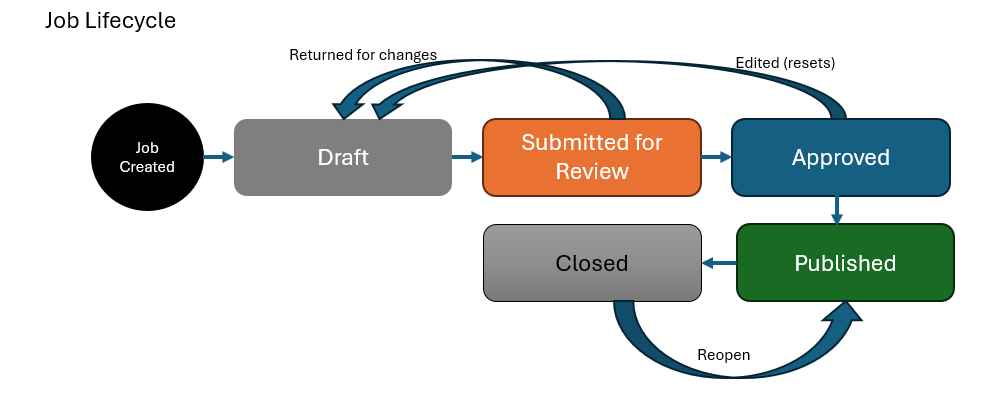
When you create a job on Cine Talent India, it does not go live immediately. Every job passes through a structured set of stages: you draft it, submit it for the platform to check, and then publish it yourself once it is approved. This process ensures that all live job postings meet the platform's standards.
The job stages
Draft
A job starts in Draft as soon as you create it inside a project. In this stage, only you (and team members with the right permissions) can see it.
In this stage:
- You can edit all details freely — role description, requirements, pay, dates, and attachments.
- Aspirants cannot find or apply to the job.
- You can save and return to the draft as many times as you need before submitting.
When you are satisfied with the job, tap Submit for Review to send it to the platform team.
Submitted for review
Once you submit, the job enters the Submitted for Review stage. The platform team checks that the posting meets the community guidelines and platform standards.
In this stage:
- You cannot edit the job while it is under review.
- Aspirants still cannot see the job.
- The review usually completes within a short time. You will receive a notification with the outcome.
Approved
If the platform team approves the job, it moves to the Approved stage. Think of this as a "ready to publish" state.
In this stage:
- The job is approved but not yet visible to Aspirants.
- You can still make final edits at this point. Note: editing an approved job resets it and it must pass through review again before it can be published.
- When you are ready, tap Publish to make the job live.
If the platform team sends the job back (rejects it), you will receive feedback and the job returns to Draft so you can make corrections and resubmit.
Published
Once you publish, the job is live and open for applications.
In this stage:
- Aspirants can find the job in search results and apply.
- The job details are locked — you cannot edit the core details of a published job.
- Applications arrive and you can review, shortlist, and manage them.
- At some point the platform may move the job into an evaluation mode internally (when you lock the workflow), which is a signal that active selection is in progress — this does not change the visible status for applicants.
Closed
When recruitment is finished, close the job. A job moves to Closed when:
- You tap Close on the job page, or
- The job reaches its end date (if one was set).
In this stage:
- No new applications can be submitted.
- Existing applications remain visible and can be finalised.
- The job record is preserved for your records.
A closed job can be reopened if needed — for example, if you need to restart recruitment for the same role.
Stage diagram
Why no edits after publishing?
Once a job is published and Aspirants begin applying, the role requirements, conditions, and expectations must remain stable. Changing them after applications have arrived would be unfair to applicants who applied based on the original terms. If you need to make significant changes, close the current job and create a new one.
Minor administrative updates (such as changing a contact person or adjusting internal notes) may still be possible — check the job edit screen to see which fields remain editable.
Common questions
How long does platform review take? Review times can vary. You will receive a notification when the review is complete. If your job has been in review for an unusually long time, you can contact platform support.
Can I withdraw a job from review and edit it? Not directly — once submitted, you must wait for the review outcome. If the job is approved, you can edit it (which resets it back through review). If it is returned to Draft, you can edit it freely.
Why was my job returned (not approved)? The notification will include feedback from the platform team explaining what needs to change. Update the relevant details and resubmit.
What happens to applications when I close a job? Applications already received are preserved. You can still view and finalise them after closing. No new applications can arrive once the job is closed.
Can I create a job outside of a project? No. All jobs on Cine Talent India belong to a project. Create or use an existing project first, then add jobs to it.
Related help
- Project stages explained
- What happens to your job application
- Understanding your dashboard